Comparison of Computer Editing Software: Windows and Mac Hardware Requirements|Recommended Video Editing Software

Organize the official system requirements for four mainstream computer editing software: Adobe Premiere Pro, DaVinci Resolve, Final Cut Pro, and CapCut, comparing RAM, GPU memory, and CPU specifications for Windows and Mac. Discuss the criteria for choosing between Mac or Windows, prioritize upgrades based on budget constraints, and introduce the Management King cloud video editor.
The smooth operation of computer editing software depends on three key numbers: the size of RAM, the generation of the CPU, and the memory capacity of the GPU. Windows computers can theoretically upgrade the GPU and freely combine components, while Mac relies on Apple Silicon's unified memory architecture to achieve a smooth 4K editing experience with lower specification thresholds. The same Premiere Pro recommends 32 GB of RAM for Windows, while the Mac M1 only needs 16 GB of unified memory to achieve similar performance. This article organizes the official system requirements for four mainstream computer editing software, comparing the component differences between Windows and Mac to help you confirm whether your computer meets the specifications before ordering or to know which part needs upgrading.
Why Does Computer Hardware Determine Whether Editing Software Runs Smoothly?
Video editing is a high-load computational task, and the software requires significant resources during the three stages of preview playback, applying effects, and exporting completed projects.
RAM (Memory) determines how many video tracks and effect layers can be processed simultaneously. If there is insufficient RAM, the software will frequently access the hard drive as virtual memory, resulting in lag and dropped frames.
GPU (Graphics Card) determines the rendering speed of effects. Premiere Pro uses GPU acceleration (Mercury Playback Engine), and DaVinci Resolve heavily relies on the GPU for color grading and AI effects; if there is insufficient memory, the software will revert to CPU computation, causing a significant drop in speed.
CPU (Processor) determines decoding speed and multi-core task performance. Modern editing software supports multi-core parallel processing, but the CPU generation and instruction set are equally important—Adobe requires the AVX2 instruction set, which is not supported by older Intel/AMD CPUs, preventing installation.
Storage Space determines the speed of reading and writing materials. Mechanical hard drives are prone to crashing when reading 4K materials; SSDs (recommended NVMe) are required for smooth operation.
In One Sentence
The smoothness of computer editing software relies most critically on RAM and GPU memory, with CPU generation being secondary; using SSDs as hard drives is the baseline requirement.
Windows Editing Computers: System Requirements for Three Mainstream Software
The table below summarizes the official minimum and recommended requirements for each software version in 2025.
Table: System Requirements for Windows Computer Editing Software (2025)
| Software | Minimum OS Requirement | Minimum / Recommended RAM | Minimum / Recommended GPU Memory | Licensing Cost |
|---|---|---|---|---|
| Adobe Premiere Pro 25.x | Windows 10 64-bit v22H2 | 8 GB / 32 GB (4K) | 2 GB / 8 GB VRAM | Starts from NT$900/month |
| DaVinci Resolve 19 | Windows 10 (Fusion requires 32 GB) | 16 GB / 32 GB+ | 4 GB / 6-8 GB VRAM (CUDA) | Free version available; Studio version approximately NT$9,500 to buy outright |
| CapCut Desktop Version | Windows 10 64-bit | 4 GB / 16 GB (4K) | Intel HD 4000 / 4 GB VRAM | Free (advanced features via subscription) |
Notes:
- DaVinci Resolve strongly recommends using a CUDA-supported NVIDIA graphics card (such as RTX 3060 or higher) on Windows for maximum benefits in color grading and AI functionalities.
- For Premiere Pro 25.x, if you want to use AI features (Firefly effects), the GPU must support DirectX 12 and have 8 GB of memory.
- CapCut can run on integrated graphics, making it the most friendly option for budget-conscious beginners.
- Windows 11 is the recommended operating system version for all three software, although Windows 10 is still supported, some new features may be limited; Windows 7/8 is not supported at all.
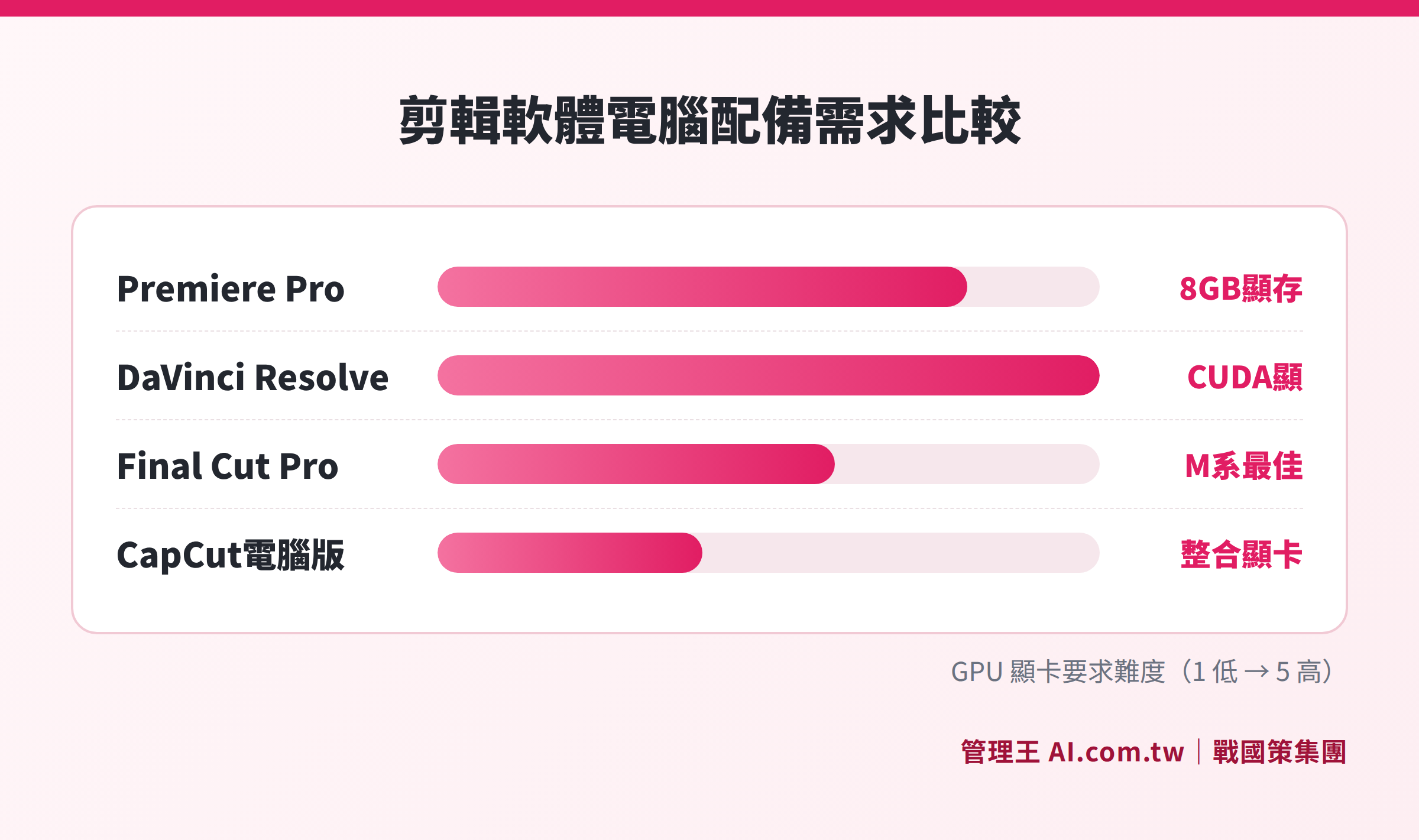
Comparison of recommended RAM and GPU memory specifications for Premiere Pro, DaVinci Resolve, and CapCut on Windows
Mac Editing Computers: Apple Silicon Redefines Performance
The advantage of Mac lies in the Apple Silicon Unified Memory architecture: the CPU, GPU, and Neural Engine share the same memory, which is accessed far faster than the PC's model of "system RAM + separate GPU VRAM," providing better editing performance at the same memory capacity.
Table: Mac Computer Editing Software System Requirements (2025)
| Software | Minimum macOS Requirement | Recommended RAM / Unified Memory | GPU Requirements | Notes |
|---|---|---|---|---|
| Final Cut Pro 11 | macOS Sequoia 15.6 | 8 GB / 16 GB unified memory | Metal compatible | Mac exclusive; US$299.99 to buy outright |
| Adobe Premiere Pro 25.x | macOS Ventura 13 | 8 GB / 16 GB (M1 Pro+) | Metal compatible (2 GB+) | Priority for Apple Silicon; Intel Macs are still usable |
| DaVinci Resolve 19 | macOS Ventura 13 | 8 GB / 16-32 GB | Metal compatible | Fusion module on Intel Macs requires 16 GB |
| CapCut Desktop Version | macOS 10.14 Mojave | 4 GB / 8 GB | Integrated GPU is sufficient | M1 native support, fast export speeds |
Important Notes:
- The AI features of Final Cut Pro (Scene Removal, Intelligent Cropping, etc.) are limited to Apple Silicon Macs, with limited functionality on Intel Macs; Final Cut Pro 11 requires at least macOS Sequoia 15.6.
- Premiere Pro on Apple Silicon Macs uses the Metal API, achieving better rendering efficiency than before, but CUDA-based AI acceleration (like PC's RTX GPUs) is not available.
- DaVinci Resolve M2 Ultra is approximately 25% faster than comparable PCs on specific color tasks (internal testing data from Blackmagic Design), but a PC equipped with an RTX 4080 still leads in CUDA-intensive effects.
- Mac users should verify their macOS version meets the requirements before purchasing, especially those maintaining older versions of macOS may not be able to install the latest Final Cut Pro.
How to Choose Between Windows and Mac Editing Computers?
The core questions for deciding between Windows or Mac boil down to two: Which software do you primarily use? What kind of workflow do you need?
Scenarios for Choosing Mac with Apple Silicon:
- Your primary software is Final Cut Pro (exclusive to Mac, not available on Windows)
- Your shooting format is primarily Apple ProRes, requiring hardware accelerated decoding
- You need long battery life for outdoor shooting (MacBook Pro M4)
- Your RAM budget is limited, 16 GB of unified memory is cheaper and has better performance than 32 GB DDR5
Scenarios for Choosing Windows PC:
- Your main software is DaVinci Resolve, needing CUDA acceleration for a large number of AI effects and color grading
- You need upgrade flexibility for the GPU in the future (upgrading a PC’s graphics card costs about NT$8,000–30,000; for Mac, a whole machine replacement is needed)
- You need to handle 8K RAW or a large number of particle effects, requiring GPUs like RTX 4080/4090
- You have the same budget but hope for higher RAM and SSD specifications (PCs at the same price point typically come with larger specs)
In-depth comparison of the complete features of various editing software, or read the Complete Beginner's Guide to Video Editing to build a solid foundation before selecting equipment.

Four-step decision process for choosing between Windows PC or Mac based on software use and budget
Comparison of Licensing Costs and Core Functions for Four Software
After choosing a platform, licensing costs are also an important consideration.
Table: Comparison of Licensing Costs and Core Functions for Computer Editing Software
| Software | Licensing Method | Cost | Multi-track Timeline | Color Grading | AI Features | Suitable For |
|---|---|---|---|---|---|---|
| Adobe Premiere Pro | Monthly subscription | Approximately NT$900/month (includes CC) | Complete | Medium (Lumetri) | Generative AI, AI audio | Commercial videos, advertising production |
| DaVinci Resolve Free Version | Permanently free | Free | Complete | Professional grade (Davinci Color) | AI noise reduction, Magic Mask | Colorists, film editors |
| DaVinci Resolve Studio | Buyout | Approximately NT$9,500 | Complete (includes Fusion) | Complete | Full AI functionality | Professional production teams |
| Final Cut Pro | Buyout | US$299.99 | Magnetic timeline | Medium | AI scene removal, subtitles | Mac ecosystem users |
| CapCut Desktop Version | Free / Subscription | Starts free (advanced approximately NT$300/month) | Basic | Basic | AI-generated subtitles, stylization | Social short videos |
2025 Actual Purchase Equipment Recommendations: Three Budget Options
Different budgets are suitable for different equipment combinations; below are three tiers explained for editing 1080p to 4K materials.
Entry-level Plan (NTD 20,000–35,000, suitable for social short videos)
Windows PC target specifications: Intel Core i5 12th generation or AMD Ryzen 5 5600X, 16 GB DDR4 RAM, 512 GB NVMe SSD, without a dedicated graphics card or with integrated graphics solution like RTX 3050. This configuration can smoothly run CapCut Desktop and Jianying Desktop for editing 1080p materials without pressure. With an added RTX 3050 dedicated graphics card, the basic editing functions of the free version of DaVinci Resolve can also be utilized.
Mac Plan: MacBook Air M3 (8 GB unified memory, 16 GB recommended), smoothly editing 1080p materials, but some AI features of Final Cut Pro need Apple Silicon; the Air's thermal design triggers performance throttling during extended 4K rendering (Thermal Throttling), which can be improved with an external cooling pad.
Mainstream Plan (NTD 40,000–70,000, suitable for 4K marketing videos)
Windows PC: Intel Core i7 13th/14th generation or AMD Ryzen 7 7700X, 32 GB DDR5 RAM, 1 TB NVMe SSD, NVIDIA RTX 4060 Ti (8 GB VRAM). This configuration can smoothly execute daily 4K editing in Premiere Pro 25.x and DaVinci Resolve 19, enabling AI effects (Premiere's Firefly, Resolve's Magic Mask) with GPU acceleration.
Mac Plan: MacBook Pro M4 Pro (24 GB unified memory) or iMac M4 (24 GB), providing excellent 4K editing experiences in Final Cut Pro and Premiere Pro, with battery life for outdoor shooting up to 12–18 hours, suitable for content creators who need portability.
Professional Plan (NTD 80,000 and above, suitable for multi-camera editing and color grading)
Windows PC: AMD Ryzen 9 9950X, 64 GB DDR5 RAM, 2 TB NVMe SSD + 2 TB media hard drive, NVIDIA RTX 4080 Super (16 GB VRAM). This configuration can handle multi-camera 4K or 6K RAW editing, with full-speed execution of AI noise reduction, auto-character masking, and multi-camera color grading features in DaVinci Resolve Studio, suitable for large commercial or documentary post-production.
Mac Plan: Mac Studio M4 Max (36 GB unified memory) or Mac Pro. The ProRes hardware acceleration of M4 Max significantly outperforms Apple format materials, enabling rapid completion of complex compositions in both Final Cut Pro and DaVinci Resolve.
How to Allocate Equipment Upgrade Budget?
If your computer is no longer sufficient but you don't want to replace the entire machine, here are the priority sequences for upgrading a Windows PC:
- First Upgrade RAM: Upgrade from 8 GB to 16 GB (about NT$1,500–2,500), which will have the most immediate impact on editing 1080p.
- Change to SSD: Replace the material hard drive from a mechanical hard drive to an NVMe SSD (about NT$2,000–3,500) for seamless reading and writing of 4K materials.
- Then Upgrade GPU: Mid-range dedicated graphics (like RTX 4060, about NT$9,000–12,000) will enable GPU acceleration and significantly shorten rendering times.
- Finally Upgrade CPU: Upgrading the CPU usually requires changing the motherboard, which is more expensive; it's not recommended to upgrade separately unless necessary.
Attention Mac Users: Apple Silicon memory and GPU are soldered onto the chip and cannot be upgraded separately—be sure to choose sufficient unified memory before purchasing. It is recommended that MacBook Pros have at least M4 Pro + 24 GB, while iMacs or Mac Studios should have at least 36 GB.
Additionally, regardless of whether it’s Windows or Mac, the color accuracy of external monitors for editing computers is equally important. For color grading and post-coloring, it is recommended to use monitors that cover over 100% sRGB (for professional use, consider DCI-P3), to avoid color deviations in your work when displayed on other screens after editing on inaccurate monitors. Entry-level brands like BenQ, LG, and mid-range options like ASUS ProArt or Apple Studio Display are strong recommendations.
Using Management King Video Editor: Edit Directly in the Browser Without Eating Up Computer Performance
If your primary usage is to edit social short videos, marketing materials, or unboxing videos, the Management King AI.com.tw Video Editor offers an alternative approach: all calculations are done in the cloud, and the local computer only needs to be able to run a browser.
Core Features:
- One-click switching of aspect ratios across multiple platforms (16:9 / 9:16 / 1:1), output the same material in YouTube, Reels, and TikTok formats without needing to re-edit.
- Timeline drag-and-drop editing, layering clips, text cards, and audio tracks in a WYSIWYG fashion.
- Brand templates: Apply corporate logos, color schemes, and intro/outro templates to maintain consistent identification for every video.
- Text cards and transition effects, complete post-production functions without the need to install large software.
The integrated advantage lies in direct integration with social scheduling management: finished videos can be scheduled for FB, IG, LINE, TikTok, and Threads without downloading and re-uploading. Coupled with AI Short Video Studio, which automatically generates subtitles and background music, greatly reduces production time.
Free plans can be used permanently, making it suitable for small and medium-sized enterprises starting out to try first, and upgrade after confirming the workflow. View complete plans and pricing.
Unlike DaVinci Resolve's professional color grading or Final Cut Pro's cinematic-level editing, the Management King Video Editor is positioned for "sufficient for marketing purposes with the smoothest workflow integration," particularly suitable for small and medium enterprise marketing teams without dedicated post-production personnel. Especially for chain stores, e-commerce brands, and food service providers that need to produce several promotional short videos or product descriptions each week, the cloud editing process of "editing and then directly scheduling for release" saves the trouble of uploading and downloading materials, as well as format conversions.
Additionally, for businesses looking to maintain brand visual consistency, the brand template function allows marketing newcomers to produce compliant videos on their first attempt without relying on designers for individual approvals. Combined with the video material library and the music material library, there are ready-to-use copyright-safe materials. If you are comparing the real limitations of free online video tools, such as watermarks or export limitations, this article can help: Clear look at the watermarks and export limitations of free editing software.
Find the Most Suitable Video Editing Tool for You
Management King consultants help evaluate desktop or cloud editing tools, recommending the most suitable plans based on your material format and marketing needs, with free consultations at no burden.
Free consultation hotline: 0800-003-191
LINE official account: @119m
Official website: app.AI.com.tw
Free trial: Apply for Management King immediately
Frequently Asked Questions
Can 8 GB of RAM run Premiere Pro for editing 1080p?
Yes, Adobe's official minimum requirement is 8 GB; 1080p materials can barely run, but timelines that are complex (with multiple tracks and effects) will exhibit noticeable lag. The actual editing recommendation is at least 16 GB, and 32 GB is recommended for 4K materials. If your computer only has 8 GB, it is recommended to upgrade RAM first, then other components.
Can integrated graphics (IGP) run DaVinci Resolve?
It can be opened, but the experience is poor. DaVinci Resolve requires GPU acceleration to play smoothly with applied color grading or AI effects; with only integrated graphics, many features will revert to CPU software rendering, which can be several times slower. Windows users are advised to equip at least a dedicated graphics card with 4 GB VRAM; Mac users should consider M series chips (M1 and above). If the budget is truly limited, you may use the Cut page of DaVinci Resolve (designed for quick edits) with a lower-spec GPU and upgrade later as the budget allows.
Can Final Cut Pro be used on Windows?
No. Final Cut Pro is exclusive software for Apple and can only run on macOS; there is no version for Windows. The closest alternatives on Windows are Premiere Pro (cross-platform with rich features) or DaVinci Resolve (cross-platform with professional color grading). If you are accustomed to the magnetic timeline operation logic of Final Cut Pro, transitioning to Premiere Pro will require some adjusting time, while the interface difference with DaVinci Resolve is larger; it is recommended to download the free version to try out before making a decision.
Is there a significant difference in hardware requirements between computer editing software and mobile editing apps?
Yes, there is a big difference. Mobile editing apps (like CapCut and Jianying) perform all calculations using the mobile processor, with the main limitations being screen size and fine operations. The system requirements for desktop software are much higher, especially DaVinci Resolve and Premiere Pro, which require dedicated graphics cards and a significant amount of RAM. For detailed comparisons of mobile editing apps, refer to: Comparison of Video Editing Apps: Which Content is Suitable for Mobile Editing.
What are the hardware requirements for Management King Video Editor?
Management King Video Editor is a cloud-based tool, all rendering is completed on the server side; the local machine only needs to smoothly run modern browsers (up-to-date versions of Chrome, Edge). A computer with at least 4 GB of RAM and a stable internet connection is sufficient for use, completely unaffected by local GPU or CPU specifications. You can try it free from the Management King Video Editor Features Page. You can also browse the Video Material Library and Music Material Library to enrich your video content.